

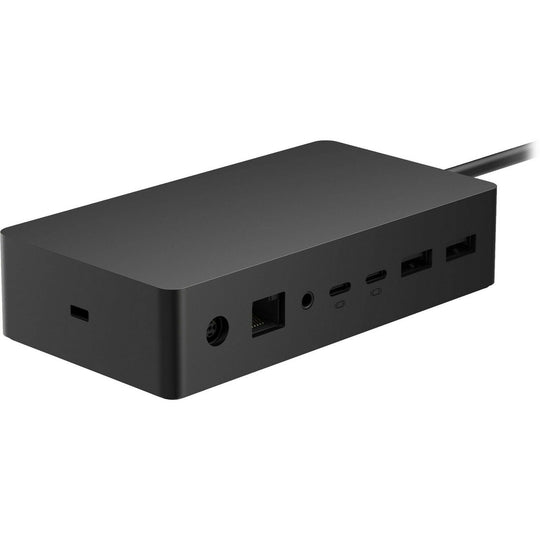
The rapid evolution of technology has redefined the workspace, making efficiency and flexibility crucial for productivity. Microsoft Surface laptops, known for their sleek design and powerful performance, have become a favorite among professionals. However, to fully unlock their potential, integrating a docking station can be transformative. This article provides an in-depth guide to maximizing efficiency using a Microsoft Surface laptop docking station, a critical accessory for modern professionals.
Why Use a Docking Station?
Docking stations serve as a bridge, expanding the capabilities of your laptop significantly. Here are some key benefits:
- Enhanced Connectivity: Connect multiple peripherals such as monitors, keyboards, and mice, without dealing with multiple cables.
- Increased Productivity: Multi-tasking becomes easier with additional screen space and seamless access to all necessary tools.
- Neat Workspace: Minimize clutter by consolidating cables and devices into one central hub.
- Portability: Easily connect and disconnect your laptop, maintaining the flexibility to move between different workstations without hassle.
Choosing the Right Docking Station
Selecting the right docking station for the Microsoft Surface laptop is essential for maximizing efficiency. Consider the following factors:
Compatibility
Ensure the docking station is compatible with your specific Surface model. Each model comes with unique specifications and port requirements, which need to be matched for optimal performance.
Port Selection
Determine the types of ports you need. Common ports include USB-C, USB-A, HDMI, DisplayPort, and Ethernet. Consider your current and future connectivity needs to avoid frequent upgrades.
Power Delivery
Opt for a docking station that supports power delivery to charge your laptop while connected. This feature eliminates the need for a separate charger, streamlining your setup.
Build Quality and Design
Invest in a docking station with robust build quality and a design that complements your workspace. A sleek, durable docking station can enhance both functionality and aesthetics.
Setting Up Your Docking Station
Once you have selected the ideal docking station, follow these steps to set it up effectively:
- Unbox and Position: Place the docking station in a location that provides easy access to all ports and maintains a tidy workspace.
- Connect Peripherals: Attach all necessary peripherals, such as external monitors, keyboards, and mice, to the docking station.
- Connect to Power: Plug in the docking station to a power source if it supports power delivery to ensure your laptop charges during use.
- Test Connections: Once everything is connected, test each peripheral to ensure proper functionality.
Maximizing Efficiency with Advanced Features
To truly maximize efficiency, take advantage of advanced features offered by Microsoft Surface laptop docking stations:
- Daisy Chaining: Use Thunderbolt 4 or USB4 ports to connect multiple displays in a daisy chain configuration, expanding your visual workspace.
- Network Connectivity: Utilize the Ethernet port for a stable and fast internet connection, essential for data-intensive tasks.
- Audio Connectivity: Connect speakers or headphones for enhanced sound quality during virtual meetings or multimedia consumption.
Conclusion
Integrating a Microsoft Surface laptop docking station into your workspace is an effective way to boost productivity and maintain a seamless workflow. By considering compatibility, port selection, power delivery, and build quality, professionals can create an efficient and ergonomic setup. With the right docking station, Microsoft Surface laptops can be transformed into powerful workstations, ready to meet the demands of a dynamic work environment.
0 Comments